


Use this Sereni LRS guide to create a rule that detects a course completion, sends a learner email and forwards the matching learning event to an external endpoint. You will configure the trigger, set up the email and webhook actions, validate the setup, activate the rule and check its execution logs. Include either action or both, depending on your workflow.
Understand the workflow
A trigger defines the learning activity to watch for. Send Webhook is an action within that trigger: it sends selected details of a matching event to a URL you provide. The same trigger can also include a Send Email action.
A single trigger can contain multiple actions, including Send Email and Send Webhook. Each action executes independently; do not assume that a failure in one action automatically prevents another action from running.
Timing: Sereni LRS checks for matching statements every 15 minutes by default. Each check looks back across twice the configured interval, so with the default setting, statements from approximately the previous 30 minutes may be considered. Self-hosted installations can use a different checking interval. Delivery is not instant.
Before you begin
- Sign in to Sereni LRS for free and open the Store where your learning statements are received. Use an account that can manage Triggers.
- Have a relevant xAPI statement available so you can check its verb and activity details against your conditions.
- Prepare a receiving webhook URL and any credentials required by that endpoint. Use an approved test endpoint and test learner data for your first check.
Step 1: Open Triggers and create a rule
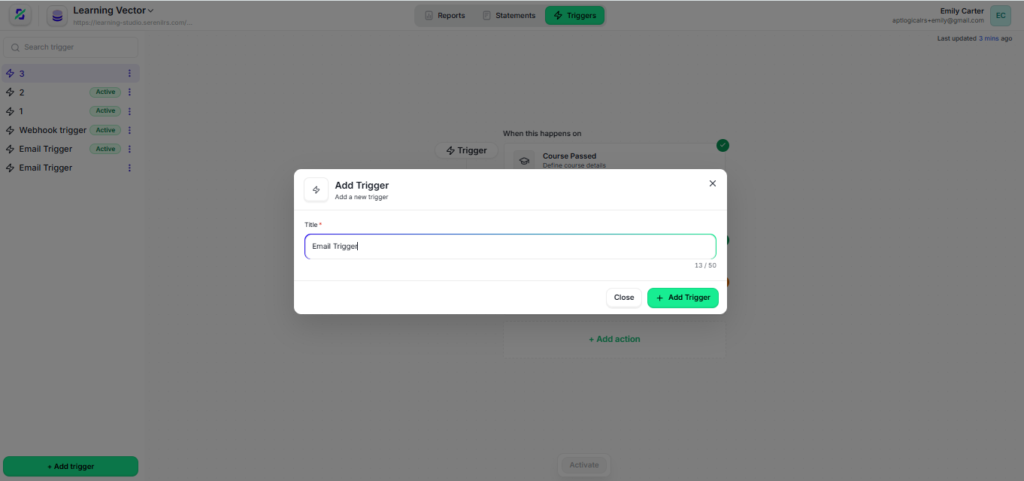
Select Triggers in the top navigation. Click + Add trigger at the bottom of the left sidebar. Enter a descriptive Title, such as Course completion webhook, then click Add Trigger in the dialog.
Choose and validate the learning event
Step 2: Select the event
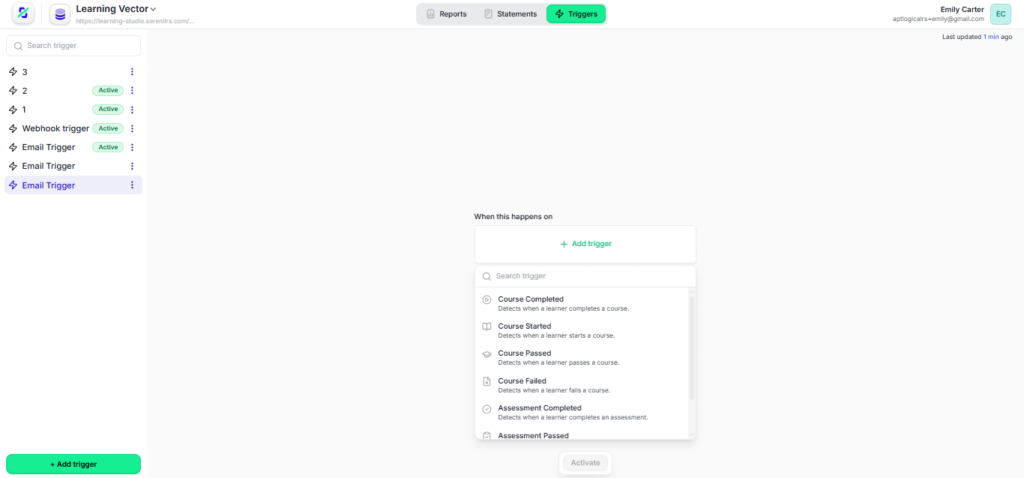
On the canvas, click + Add trigger under When this happens on. Select Course Completed for this example. Other visible starting points include Course Started, Course Passed, Course Failed and Assessment Completed. Choose the event that matches the statement your learning platform actually sends.
Step 3 Review the conditions
Click the Course Completed card to open its configuration panel. Review the Conditions section. The screenshot shows Verb and Object filters connected with And. Check the full values in the interface; the screenshot truncates them.
- Verb: confirm the condition matches the completion verb in your state ment. A common completion verb is http://adlnet.gov/expapi/verbs/completed.
- Object: review which activity detail the filter checks and whether it matches your intended course data. Do not assume that the course name alone identifies the activity.
- Use Add filter to refine the rule when needed. The release brief lists learner, activity, verb and result conditions. With And, each configured condition must match.
Step 4 Validate and save the trigger
Click Validate trigger. Check the Results area for Trigger successful and the Validated indicator. If validation fails, review the conditions and the available statement data, then validate again. Click Save once the configuration is correct.
The trigger panel says validation data can be used in later stages. Treat successful validation as a configuration check; you still need to activate the rule and test a new matching event.
Step 5 Add and configure the email action
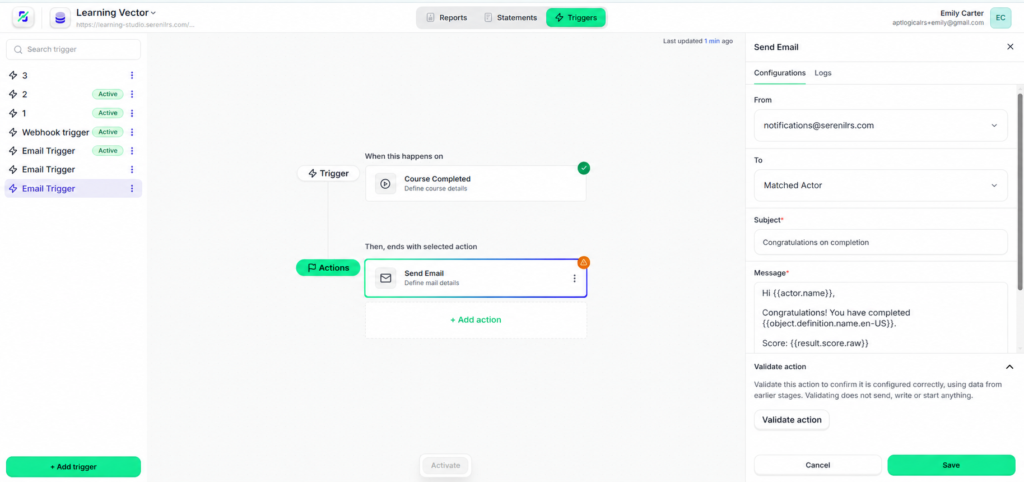
Under Then, ends with selected action, click + Add action and select Send Email. Click the Send Email card to open its configuration panel. Use the Configurations tab to enter the email details.
Step 6 Set the sender and recipient
In From, select an available sender address. The screenshot shows notifications@serenilrs.com; use the sender available in your own configuration. In To, select Matched Actor when the message is intended for the learner whose statement matched the trigger. Matched Actor works only when the learner is identified by an email address in the statement’s mbox field. Other identifiers, such as account, mbox_sha1sum or openid, do not provide a usable email address for this email action.
Step 7 Write the subject and message
Enter the required Subject, for example Congratulations on completion. In the required Message field, add your completion message. The screenshot uses placeholders to personalize the message from the matched learning data.
Example message:
Hi {{actor.name}},
Congratulations! You have completed {{object.definition.name.en-US}}.
Score: {{result.score.raw}}
Use {{actor.name}} for the learner name, {{object.definition.name.en-US}} for the activity name and {{result.score.raw}} for the raw score.
For example, if the activity name in the statement is Workplace Safety Basics, the email can read:
“Congratulations! You have completed Workplace Safety Basics.” If the activity name is unavailable, use {{object.id}} as the alternative so the email can identify the activity by its ID. These placeholders display values only when the matching xAPI statement contains the corresponding data. If a score is missing, {{result.score.raw}} produces a blank value; ensure the statement contains a score before including the score line. A raw score is not automatically a percentage; append % only when the source data uses a percentage scale. The message body is sent as HTML, so you can use HTML markup to format the email.
Validate and save the email action
Step 8 Add recipients and validate the email
If you need additional recipients, click + Add CC / BCC and enter them using the controls provided. Review the recipient, subject and message, then click Validate action.
When validation succeeds, the button shows Validated and the Results area displays Action successful, as shown below. If validation reports an issue, correct the configuration and validate again.
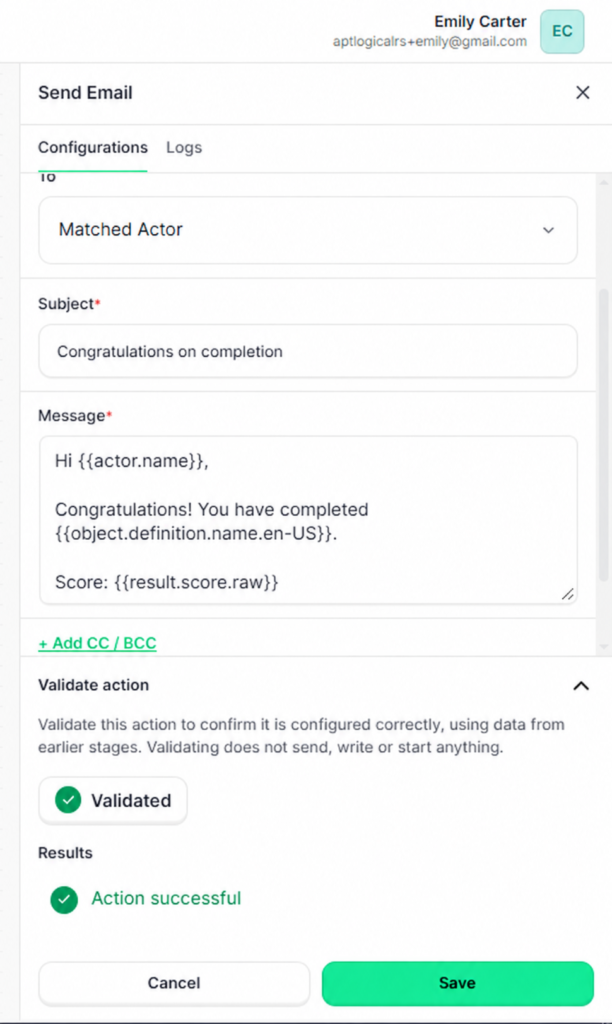
Click Save at the bottom of the panel to store the email action. Return to the canvas to continue configuring the rule.
Important: the interface states that validation does not send, write or start anything. Action successful is a configuration result, not confirmation that the learner received an email. After activating the rule, generate a new matching event and check delivery to the intended recipient.
To send the event to an external system as well, continue with Send Webhook below. If you only need email, proceed to Step 14 to activate and test the rule.
Add and configure the webhook action
Step 9 Add Send Webhook
Under Then, ends with selected action, click + Add action and select Send Webhook. This opens the Send Webhook panel. You can create a webhook action without adding an email action first.
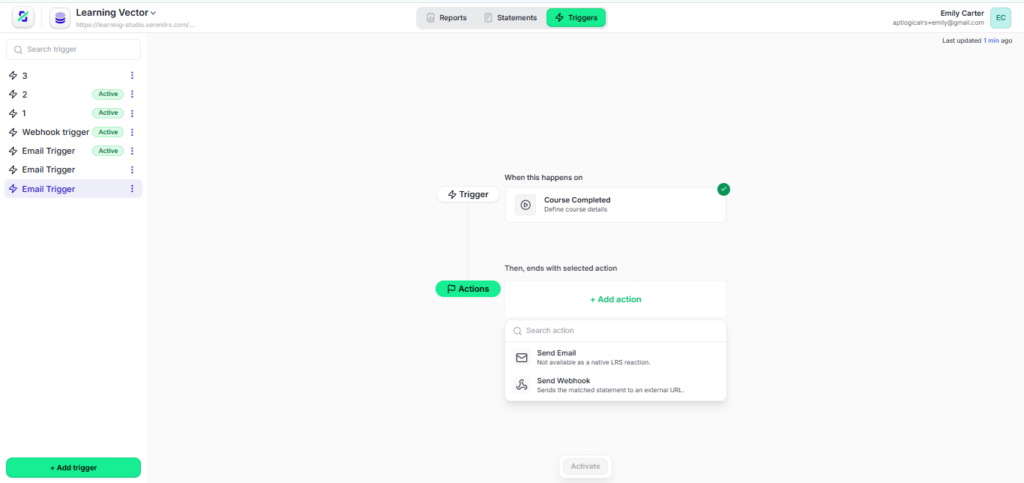
Step 10 Set the destination
In Configurations, enter the receiving endpoint in Target URL. Use your own URL, for example https://training.example.com/hooks/course-completed. This is an illustrative address; replace it with an endpoint that exists and accepts the event data.
Step 11 Choose authentication
Open the Type dropdown and select the option required by the receiving system:
- Basic Auth: provide the credentials required by the receiving endpoint in the fields shown after selection.
- Bearer Token: provide the token required by the receiving endpoint in the fields shown after selection.
- Inherit auth from parent: this option does not automatically provide authentication or inherit credentials from another configuration. If the receiving endpoint requires authentication, configure the required Authorization header under Custom Headers, or select the supported Basic Auth or Bearer Token option and enter the endpoint’s credentials.
Use the receiving system’s credentials. Do not automatically reuse your Sereni LRS sign-in or xAPI to access credentials for an external destination.
Choose the payload and validate the action
Step 12 Select the event details to send
Use the checkboxes in Send Webhook to choose which statement fields are sent to the receiving system. The screenshots show Select all, id, Actor and Verb, with expandable groups; date and timeOfDay are visible farther down the panel. If you select specific fields, the payload is limited to those selected fields. If you select no fields, the webhook body defaults to the full statement ({{statement}}).
Expand the groups to review the available details. Select the fields your receiver needs and inspect Sample Payload to check the JSON structure. Include the Statement ID when useful for tracing the event back to Sereni LRS. Avoid sending learner details the receiving workflow does not need.
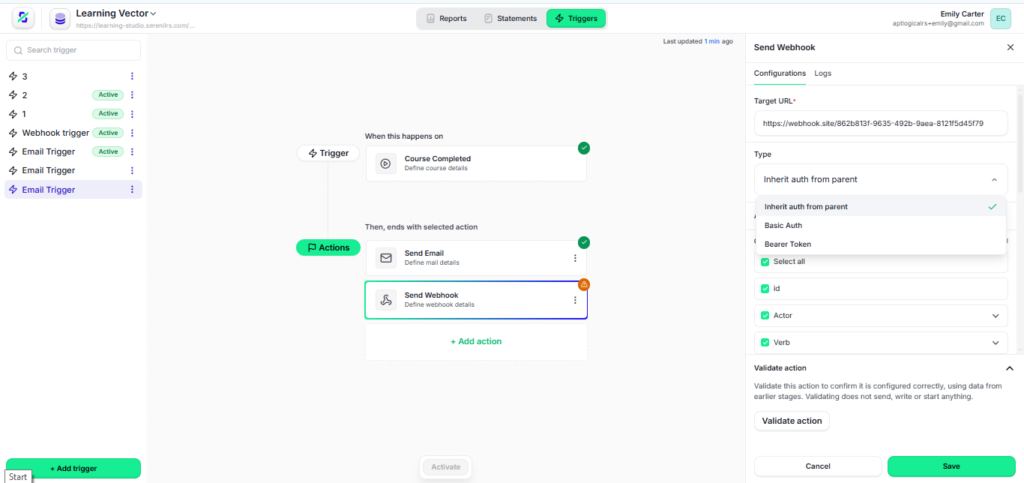
For this course-completion example, check that the actual matching event contains the intended learner, completion verb and activity. The sample shown in your reference image contains an initialized verb; it should not be treated as proof of a live course-completion delivery.
Step 13 Validate and save the webhook
Click Validate action. Review the Results area for Action successful and confirm the Validated indicator appears. Correct any reported issue, validate again, then click Save.
Important: the interface explicitly states that action validation does not send, write or start anything. A successful result checks configuration using data from earlier stages; it does not prove that the destination received a webhook or accepted its authentication.
Activate the rule and check delivery
Step 14 Activate the trigger
Return to the canvas and confirm the trigger and every action you have added have been saved and validated. Click Activate at the bottom of the canvas. Check that the rule displays Active in the left sidebar.
If Activate remains unavailable, reopen the trigger and action panels, review their validation results and save any outstanding configuration changes.
Step 15 Generate a matching test event
After activation, complete a test course through the connected learning platform so it sends a new statement matching the rule. Confirm that statement appears in the correct Sereni LRS Store. Allow for the default 15-minute checking cycle before expecting the action to run; each check looks back across twice the configured interval.
For Send Email, check that the intended recipient receives the message and that its placeholders resolve correctly. For Send Webhook, check the receiving system for the incoming request and inspect its payload. Verify the statement ID, selected fields and any downstream outcome your receiver is meant to produce. Saving or validating a rule alone does not establish that historical statements will be processed.
Step 16 Review the action logs
Open the Send Webhook action and select Logs. The supplied screenshot shows Executed At, Statement ID, Status and Error Message. Find the row for your test statement and review its execution time and result.
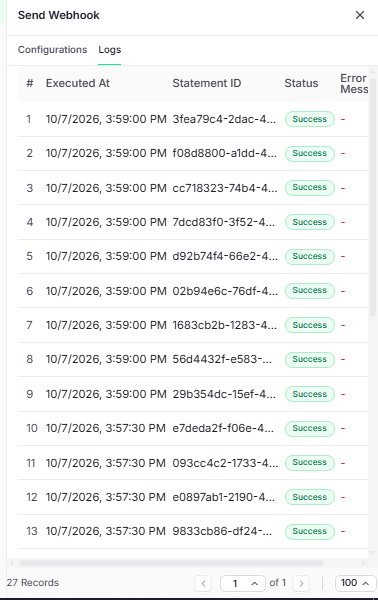
Logs can show Success, Failed or Skipped, depending on the execution outcome. A Success entry shows the action was recorded as successful. Also check the receiving application: accepting a request and completing a downstream task are separate outcomes. Webhook requests time out after 15 seconds, and non-2xx HTTP responses are logged as errors. If a row reports an error, use its message to guide the next check. Failed email and webhook actions are not retried automatically. After fixing the issue, generate a new event that matches the trigger conditions to test delivery again.
Troubleshooting and managing the rule
If the email does not arrive
Confirm that the trigger is Active, the new statement matches its conditions and the checking cycle has had time to run. Reopen Send Email to check the From and To selections and the saved message, and check the action’s Logs tab for execution information. Check the recipient’s spam or junk folder. Matched Actor requires an email address in the statement’s mbox field; account, mbox_sha1sum and openid identifiers do not provide a usable email address for this action. If names or scores appear blank, check whether the matching statement contains the corresponding data. Missing placeholder data produces a blank value.
If a trigger stopped working: check whether the tenant has become read-only. Triggers are automatically suspended when a subscription enters read-only mode.
If the webhook does not behave as expected
- No log entry: check that the rule is Active, the new statement reached the correct Store, its data matches every condition and the checking cycle has had time to run.
- Validation fails: review required settings, trigger conditions and the data available from earlier stages. Correct the reported issue and validate again.
- Execution reports an error: read Error Message, then check the destination URL, required credentials, Custom Headers and the receiving service’s availability. Webhook requests time out after 15 seconds, and non-2xx HTTP responses are logged as errors. Failed actions are not retried automatically; correct the issue and generate a new matching event.
- Unexpected or missing fields: revisit payload selection and Sample Payload, then compare them with the actual matching statement and the received request.
- Success but no downstream result: inspect the receiving application’s logs and processing rules using the statement ID to trace the event.
If an action failed: correct the configuration or delivery issue, then generate a new event that matches the trigger conditions. Sereni LRS does not automatically retry failed email or webhook actions.
Deactivate a trigger
Use the trigger’s management controls to deactivate it when you need the automation to stop. You can reactivate a deactivated trigger whenever you want the automation to resume.
Setup is complete when
Your rule is Active, a new matching statement produces a webhook execution log, the destination receives the selected payload and the intended downstream task is confirmed.
Put Your Learning Data to Work
Start with one learning event that matters to your team. One trigger can contain multiple actions, such as Send Email and Send Webhook. Each action executes independently, so a failure in one action should not be assumed to prevent the other action from running. Use Sereni LRS Triggers to send a learner email, forward event details through a webhook, or combine both in one rule. Follow this guide to configure, validate and test your first workflow.
Get Started Free | Explore Sereni LRS Features
Need help planning your workflow? Contact sales@serenilrs.com.